
For a high-quality video to GIF export, balance dimensions, frame rate and file size rather than maximizing every setting. GIF has fewer colors than MP4 and cannot retain audio.
Export a finished face swap
Open a completed video or GIF swap in the result view or My creations and choose Export GIF. Start with a simple preset; open Advanced to adjust size, frame rate and the file-size limit. Create the export, then download it.
Keep the MP4 for better color detail and audio. GIF has fewer colors and no audio; transparent input areas become white, and very short frame delays may be rounded. Watch several loops before sharing. Exports expire with the saved result.
Check that you have permission to use and share the clip. Converting its format does not change the permissions for the people, footage or any other included material.
Balance dimensions, frame rate and file size
Use the destination's current upload limits to choose an export size. Lower dimensions, fewer frames and a shorter duration can reduce file size, but each also changes the viewing experience. Test the output rather than assuming that a high-quality label in an export menu is enough.
GIF does not carry the video's audio. If the joke depends on spoken words, use readable captions or share the video instead. Avoid covering the face with text.
Watch the finished loop on the intended device
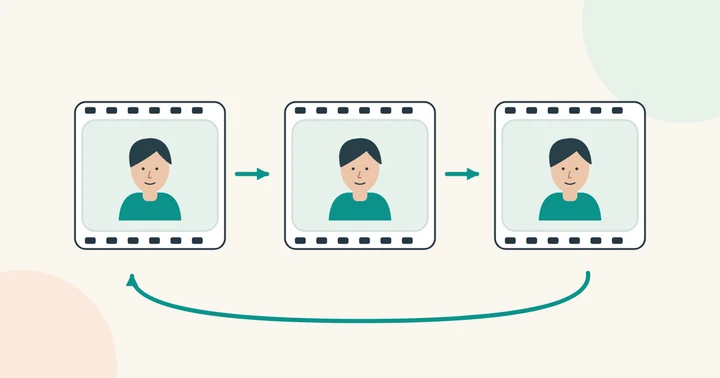
Inspect color banding, facial edges and the transition from the end back to the start. Confirm the animation speed after export. If it looks choppy or the loop jumps, return to the video master and adjust the export rather than converting the GIF repeatedly.
To change the face first, open the GIF workflow or video face swap. For planning a new animation from an image, read the generation guide.