
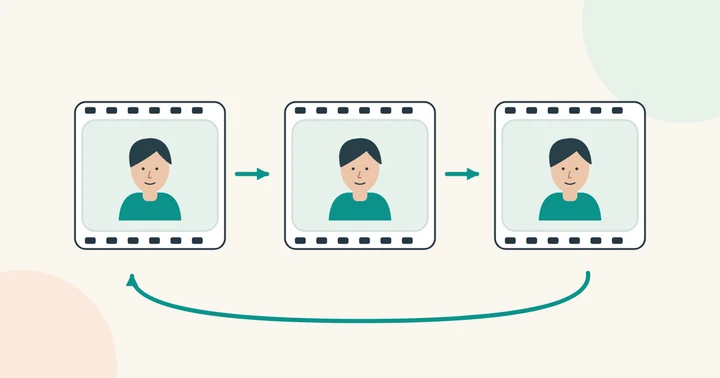
The GIF face swapper processes the animation as video, then lets you keep the MP4 or export a GIF. Watch several loops to check facial edges and the transition between the last and first frames.
A real GIF face swap
Could not load this example. Please try again.



How to face swap an animated GIF
- Save the original GIF. Upload the actual animated file, not a screenshot or a webpage link.
- Choose a portrait. Use one clear replacement face with a similar angle to the face in the animation.
- Review the animation length. The studio reads GIF frame delays and prices the job as video.
- Generate and inspect. Check the motion, facial edges and the transition from the last frame to the first.
The updated renderer supports photos, videos and animated GIFs. Select up to four people, assign replacement portraits and check a free frame preview before creating. GIF swaps produce MP4, with an optional GIF export.
Download MP4 or export GIF
Open a completed video or GIF swap in the result view or My creations and choose Export GIF. Start with a simple preset; open Advanced to adjust size, frame rate and the file-size limit. Create the export, then download it.
Keep the MP4 for better color detail and audio. GIF has fewer colors and no audio; transparent input areas become white, and very short frame delays may be rounded. Watch several loops before sharing. Exports expire with the saved result.
Keep a copy of the original. Repeatedly converting between GIF and video can change timing, dimensions and color detail. A short animation with a large visible face is a better starting point than a tiny compressed meme.
Size, duration and free trial
GIF uploads can be up to 200 MB and 10 minutes, with each side between 64 and 3840 pixels. Replacement portraits can be up to 20 MB.
If the file cannot be read, try exporting it again or uploading an MP4 version. An image that merely has a .gif filename may not contain a valid animation.
Make a reaction that people can read
Choose a loop whose expression does the work: a smile, a pause or a surprised look. Avoid scenes in which the person is tiny or frequently hidden. After swapping, watch several repetitions to catch changes at the loop boundary.
Use your own face or a consenting participant. When posting an edited reaction, make the context clear. For still-image captions, see the face swap meme guide.