
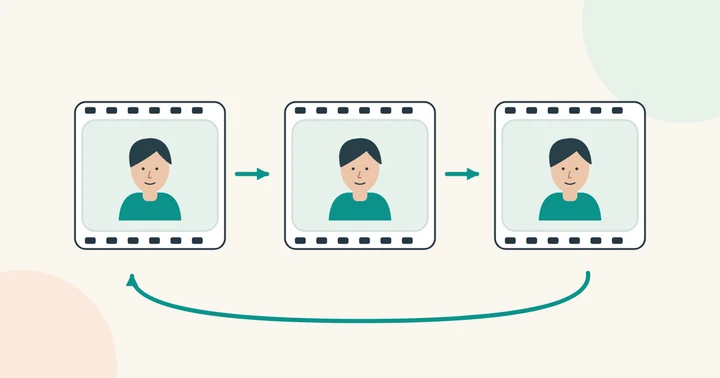
Use the actual animation file
Save an authorized copy of the GIF to your device. A screenshot contains only one frame; a webpage address is not a file upload. Open the saved file locally and confirm that it animates before submitting it.
Keep within 200 MB and 10 minutes. For a first test, a short reaction with one large visible face is easier to inspect than a long, low-resolution montage.
Add a compatible portrait
Choose a sharp replacement face in JPG, PNG or WEBP, up to 20 MB. Match the main face angle in the loop. If the face turns dramatically during the animation, inspect those moments especially closely in the output.
AISWAPFACE is free right now. No credits or payment needed.
Check the returned file and loop boundary
Open a completed video or GIF swap in the result view or My creations and choose Export GIF. Start with a simple preset; open Advanced to adjust size, frame rate and the file-size limit. Create the export, then download it.
Keep the MP4 for better color detail and audio. GIF has fewer colors and no audio; transparent input areas become white, and very short frame delays may be rounded. Watch several loops before sharing. Exports expire with the saved result.
Watch several repetitions. A visible jump between the last and first frames can come from the original loop or the conversion settings, not only from the face swap. Keep the original alongside the output when troubleshooting.
When the file cannot be read
Try exporting a valid animation again, or use an MP4 version you are permitted to edit. Changing the filename extension does not convert a file. Avoid repeatedly uploading the same broken file.
For captions and sharing, see the meme-making workflow.
Worked example: a three-second reaction loop
Use an authorized three-second GIF with one clear face and a small expression change. This is an example workflow, not a measured rendering result. Open the actual saved GIF and watch two cycles before uploading.
- Upload the animated file, then add the replacement portrait.
- AISWAPFACE is free right now. No credits or payment needed.
- After completion, compare the first frame, expression peak and last frame, then watch the loop repeat.
If the preview is frozen, verify that you saved the animation rather than a screenshot. If the original already jumps at the loop boundary, face replacement will not repair its timing. Use Export GIF on the completed result if you need an animated GIF.
Keep the original and downloaded file separately so you can identify a timing change introduced by conversion. Check playback after conversion before posting. For an unreadable upload, follow the file checks; save the result within its retention window.