
Compare eyes, facial edges and lighting at the original size. For video, review head turns and speech in motion; a clear still preview does not prove the whole clip will look natural.
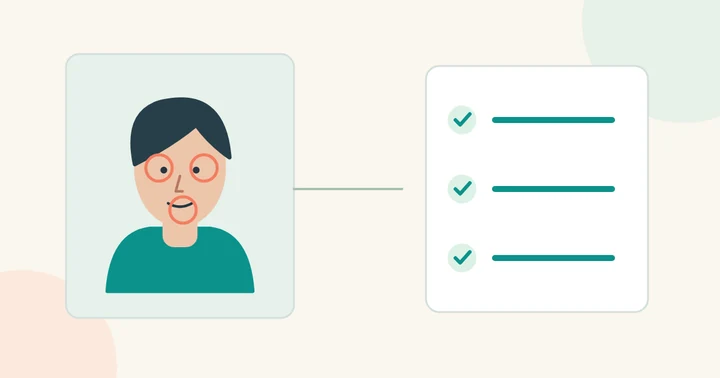
The swapped face is soft or lacks detail
Check the original reference at full size. If the eyes and mouth are already blurry, a new render cannot reliably recover their true detail. Find a sharper portrait or a less compressed copy. Avoid using a tiny face cropped from a group screenshot.
Also compare the face with the scene. A low-resolution face in a very sharp target can stand out. Upscaling may add plausible texture without restoring identity; read the upscaling guide before relying on it.
The jaw or hairline looks pasted on
Match head angle, expression and lighting. A profile face with one eye hidden is a poor match for a full frontal portrait. Strong side light in one image and flat light in the other can create an obvious boundary.
Keep the face unobstructed when possible. Glasses, fingers, hair across the mouth and deep shadows make the boundary more difficult. Try another portrait before attempting to repair every edge after the swap.
The wrong person changes
The updated renderer supports photos, videos and animated GIFs. Select up to four people, assign replacement portraits and check a free frame preview before creating. GIF swaps produce MP4, with an optional GIF export.
If your project needs separate assignments, read the multiple-face limits and select a workflow with explicit targeting.
The video looks acceptable only in some frames
Check head turns, fast motion, cuts and moments of occlusion. Test a short representative clip and watch it at normal speed. If the person repeatedly leaves the frame or becomes tiny, choose a clearer source scene.
Save time by checking the hardest section first. A still-image preview is not evidence that every frame of a video will be consistent.
The job fails or the result is no longer available
Check the file format, size and duration in the studio. A renamed extension does not make an unsupported file valid. Standard saved results use the account retention setting; Enhanced and Vault video results have a 1-hour window.
Download completed media promptly. Use support with the job details if the displayed status or balance does not resolve.