
First create your face swap, then use the meme caption tool on the finished still image. A face swap meme generator workflow should also check text size, contrast and the context before sharing.
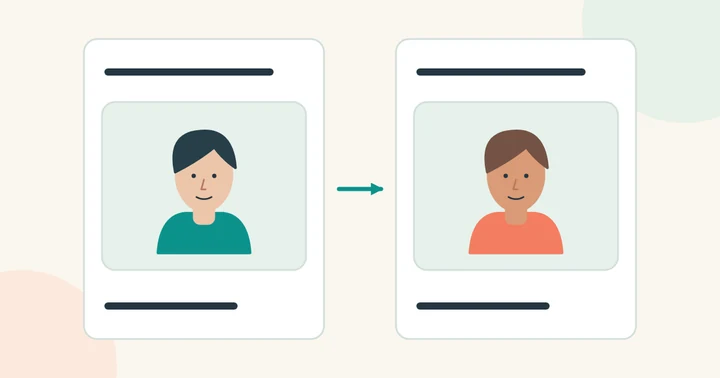
Choose a scene that works at a small size
Use your own scene or one you have permission to edit and share. Pick a face large enough to remain recognizable when the image is viewed in a chat. A busy group photo or a heavily compressed screenshot makes the expression harder to read.
Match your replacement portrait to the angle of the original. If the meme depends on a surprised expression, an incompatible face pose may weaken the effect even when the identity replacement is recognizable.
Create and inspect the replacement
- Upload the scene in photo face swap, or use the GIF workflow for a short animation.
- Add a clear portrait of your own face or a consenting participant.
- AISWAPFACE is free right now. No credits or payment needed.
- Check the eyes, mouth and hairline before saving the output.
Open a completed video or GIF swap in the result view or My creations and choose Export GIF. Start with a simple preset; open Advanced to adjust size, frame rate and the file-size limit. Create the export, then download it.
Keep the MP4 for better color detail and audio. GIF has fewer colors and no audio; transparent input areas become white, and very short frame delays may be rounded. Watch several loops before sharing. Exports expire with the saved result.
Add text without covering the expression
Place short captions in clear space above or below the face. Use enough contrast to survive a small screen and test the result at the size people will actually see it. For animation, let viewers read the text before the loop restarts.
Keep edited or fictional context clear. A joke should not depend on making viewers believe an identifiable person really did or said something they did not. Save a clean version without captions so you can revise the wording later.
Use the portrait in a sticker
To turn your finished portrait into a sticker, download the image and isolate the desired area in a separate editor. Leave a little space around the face or add an outline so it remains readable against different chat backgrounds. See the cut-out guide for masks and transparent edges.
Export in a format and size supported by the messaging app, then check the sticker at its actual small display size. This studio does not generate a sticker pack or publish directly to a messaging app.