
A dog's muzzle, eyes and fur do not match a human face model. The animal appearance editor offers selected, prompt-guided changes; it is not a proven dog face swap or pet-identity replacement system.
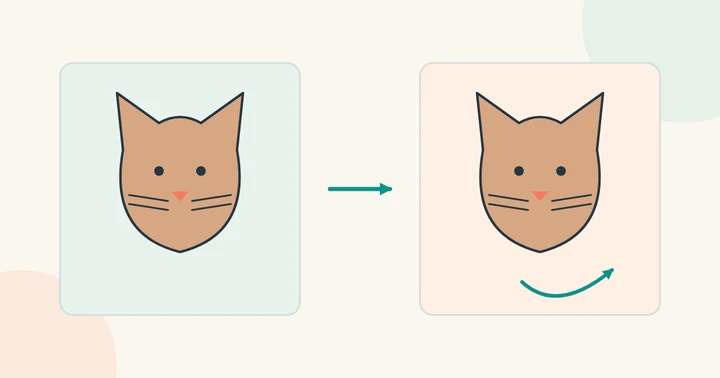
Why a human portrait workflow may fail
A face detector may not recognize an animal face, or may place facial features incorrectly if it finds an approximate match. A cat's muzzle and ears are not simply a human face with a different texture. A failed detection does not mean that a larger upload will fix the geometry.
Keep the original pet photo. For a playful composite, choose a tool that supports masks, layers or generation over a selected area rather than relying on a human face detector.
Plan a readable pet portrait edit
Use a sharp image showing the eyes and the full outline of the head. Pick a reference with a similar angle and lighting. Decide whether the result should be photorealistic, illustrated or openly humorous, because those styles need different levels of edge and texture matching.
Inspect whiskers, fur edges, ears and the connection to the neck. These details can matter more than the center of the face. Keep any costume or background edit separate so you can identify which step introduces an artifact.
Make a pet portrait appear to talk
A talking-pet effect animates a muzzle and may synchronize it with audio; it is not human face replacement. Choose a separate animator that explicitly accepts animal portraits. Start with a sharp front or slight side view, visible eyes and muzzle, and an unobstructed head outline.
Use a short audio clip you are allowed to use. Watch the whole result for sliding teeth, stretched whiskers, changing ears and a head that no longer matches the original pet. This studio has no talking-pet or animal-animation mode.
Choose an available alternative
For a human portrait in a costume or scene you are permitted to use, photo face swap is available. For whole-character ideas, read the character-swap guide.
There is no animal-face upload mode or pet-animation generator here. Treat this page as guidance for choosing another workflow, not as a promise of supported pet processing.