
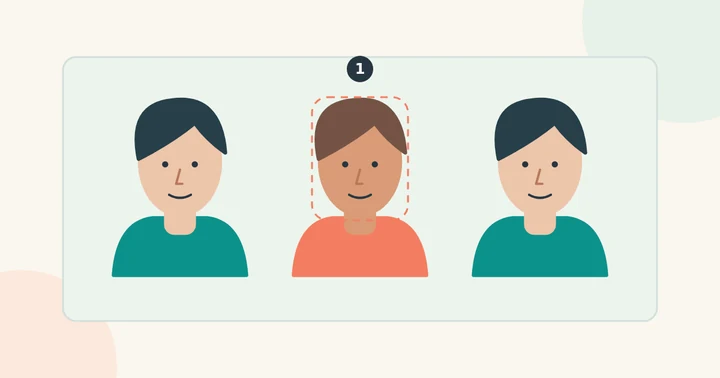
Make a face-assignment list
Give each visible person a simple position label, such as left, center and right, then pair that position with the intended replacement portrait. Collect permission for the specific edit and keep the original group photo.
Choose references with similar head angles to the people they will replace. One frontal portrait is unlikely to fit every face in a group where people look in different directions.
Check the editor before uploading the group
A suitable multi-face editor should show detected faces, let you choose which ones change and accept distinct portraits for those selections. Check whether it also leaves unselected people untouched.
The updated renderer supports photos, videos and animated GIFs. Select up to four people, assign replacement portraits and check a free frame preview before creating. GIF swaps produce MP4, with an optional GIF export.
Review each person and the whole scene
Inspect faces that should have changed and those that should not. Look for duplicate identities, changed expressions, mismatched lighting and edges where heads overlap. Compare the composition at its intended display size.
If you only need one person’s portrait, use a separate image or a crop that contains only that person. That can support a single-face edit, but it does not preserve a complete group composition.
Keep batch processing separate
Several people within one picture is a multiple-face task. Several separate pictures is a batch task. A tool can support one without supporting the other, so check both if your project requires them.